• Skip to main content
  • assistive.skiplink.to.breadcrumbs
  • assistive.skiplink.to.header.menu
  • assistive.skiplink.to.action.menu
  • assistive.skiplink.to.quick.search
  • Metropolia.fi
  • Curricula
  • Wiki
  • Moodle
Metropolia
Menu
    • Attachments (7)
    • Page History
    • Page Information
    • Resolved comments
    • View in Hierarchy
    • View Source
    • Export to PDF
    • Export to Word
  • Browse
    • Pages
    • Blog
    • Labels
    • Space Operations
  • Login
    • Metropolia Login
    • Haka Login
    • Visitor Login

IT Services

  1. Dashboard
  2. IT Services
  3. …
  4. Front page
  5. Software and Systems
  6. Remote Connections
Print
Main navigation

How do I move face-to-face teaching to distance teaching?

There are many reasons why it is sometimes necessary to switch from face-to-face teaching to distance teaching and to make changes to already planned schedules. One key reason may be a sudden situation such as a pandemic, strike or weather conditions.

In this guide, we go through how to create a network link with the Zoom video conference program and change the reservation in numerical order from the physical location to the network.

Information about the location is automatically updated in the calendars of the persons, realizations and groups included in the reservation, e.g. In OMA, Tuudo and Outlook.


Creating a remote participation link in Zoom
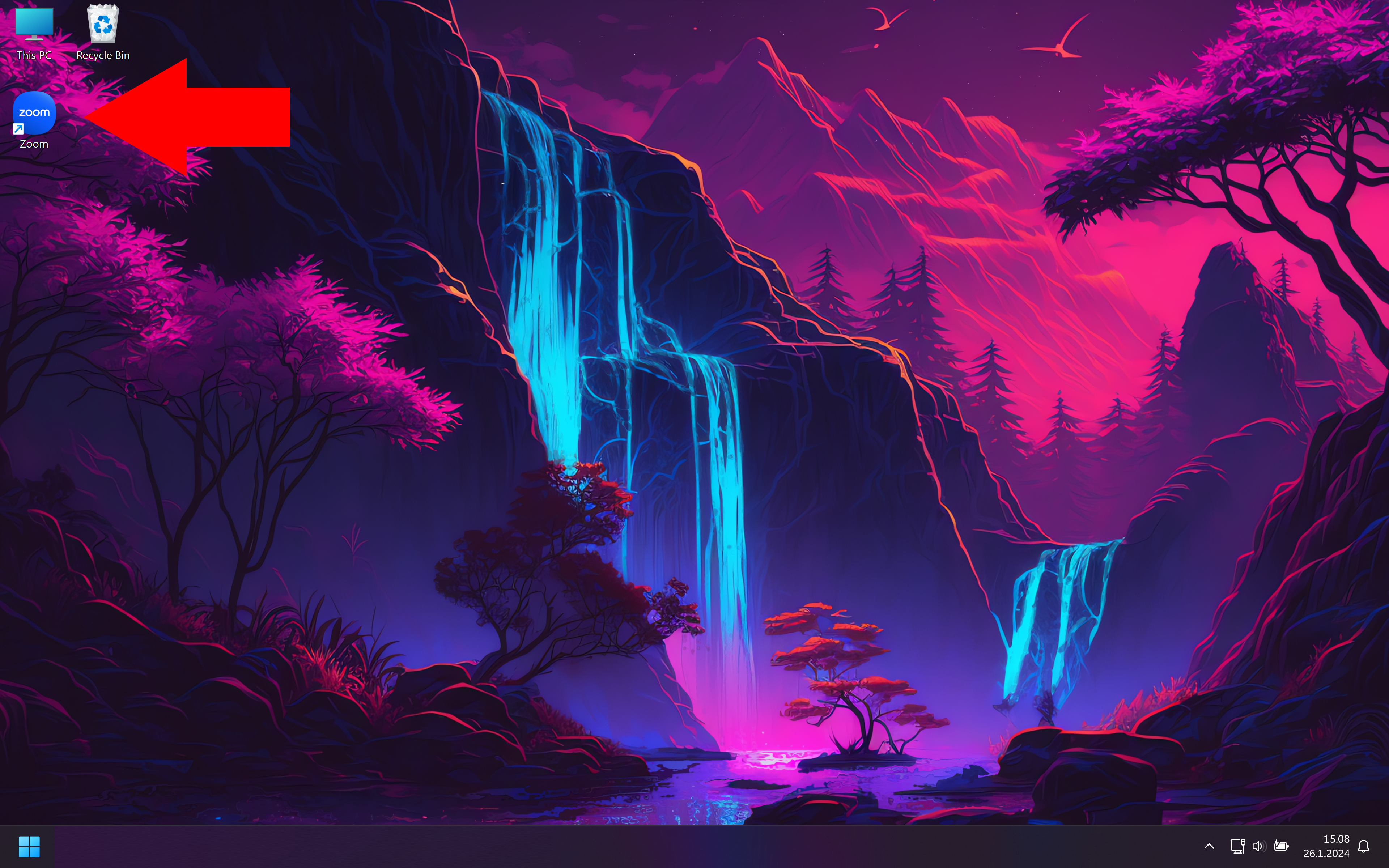
  • Open the Zoom video conference program on the desktop and log in with the SSO login method.
  • Metropolia's domain is metropolia.zoom.us
  • The login window opens in the browser.
  • Log in with your own Metropolia credentials.


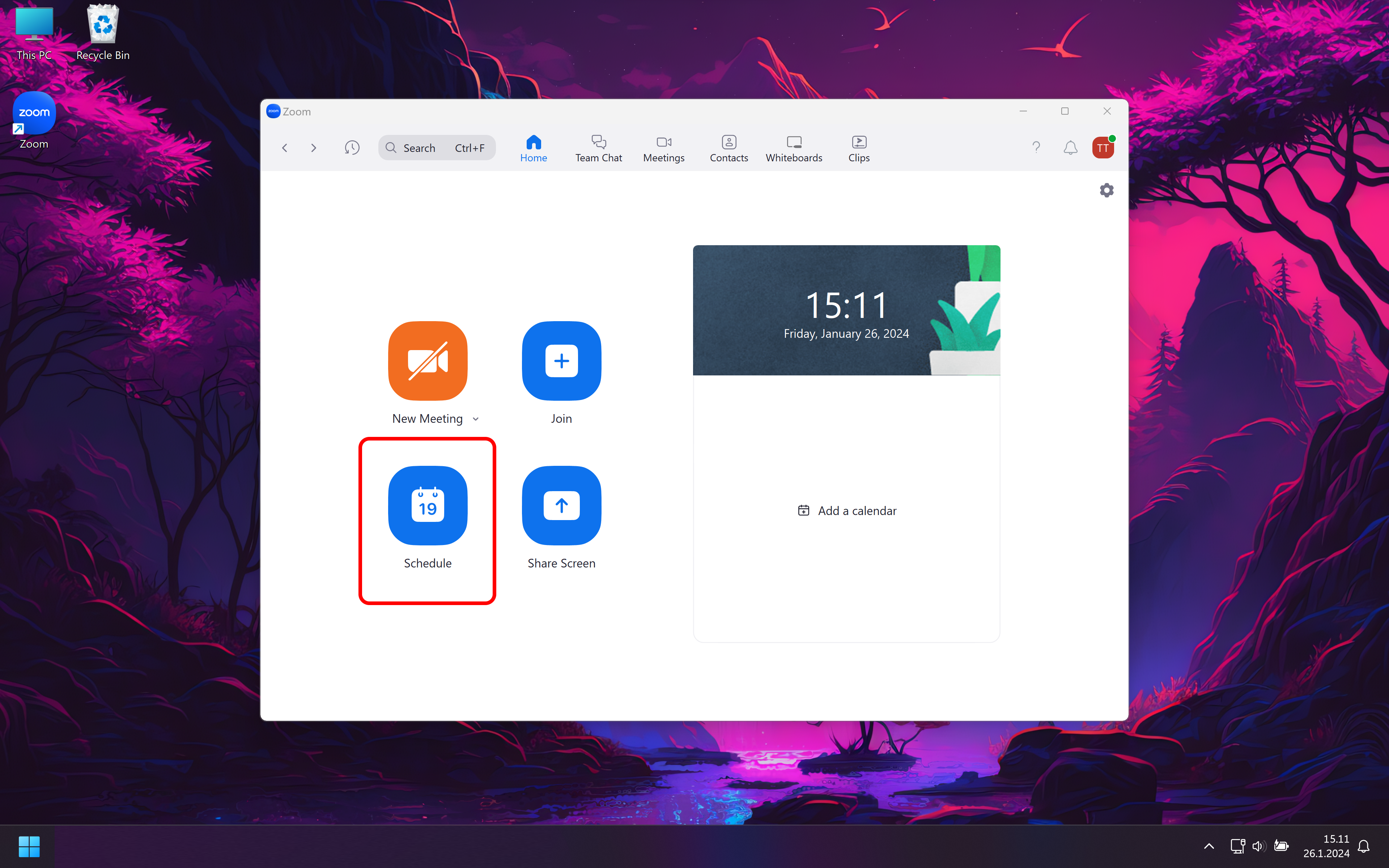
  • Select the Schedule button with the calendar icon.


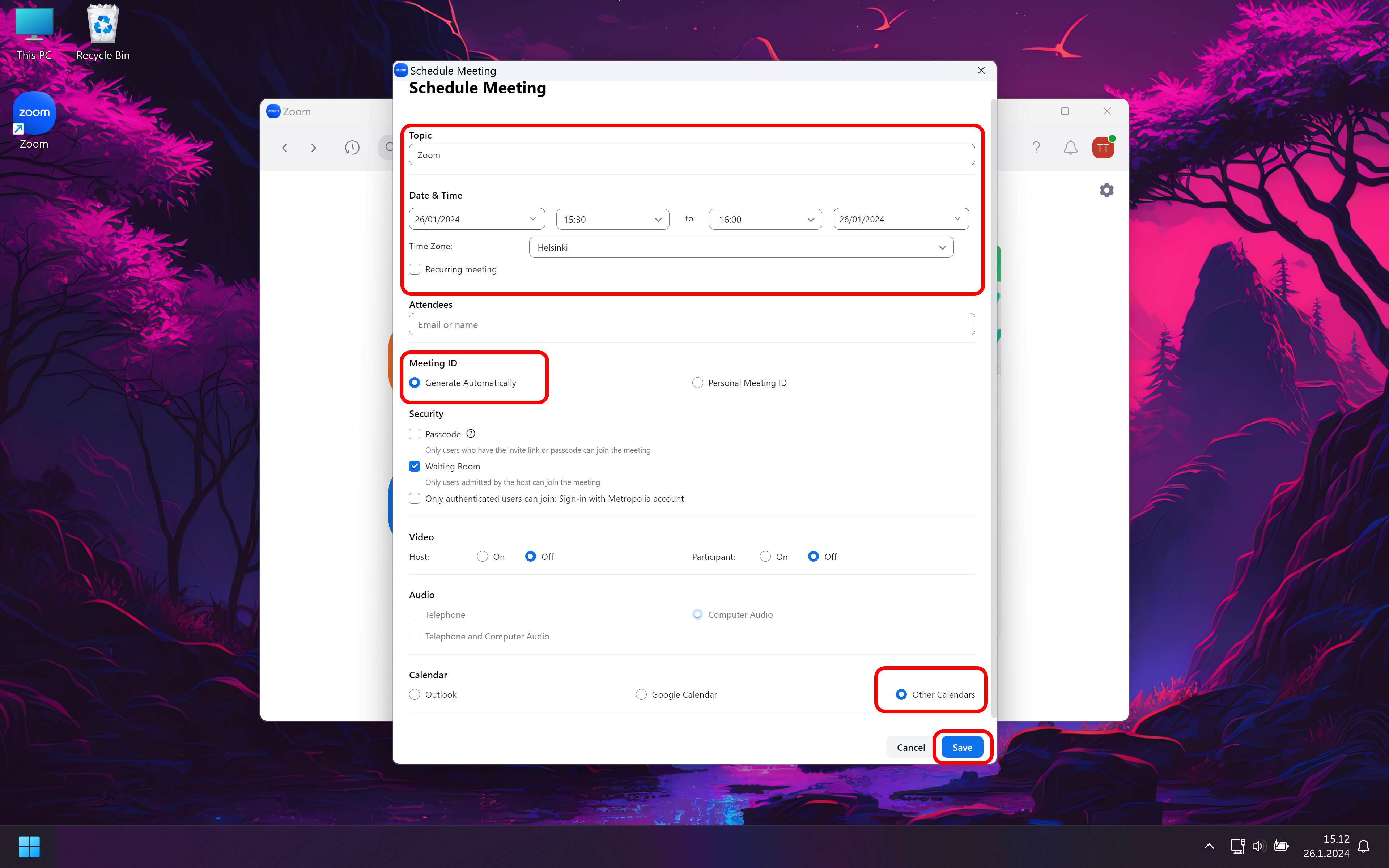
  • Fill in the requested information about the topic and time of the reservation.
  • Select Meeting ID under Generate Automatically
  • Select Calendar under Other Calendars
  • Select Save


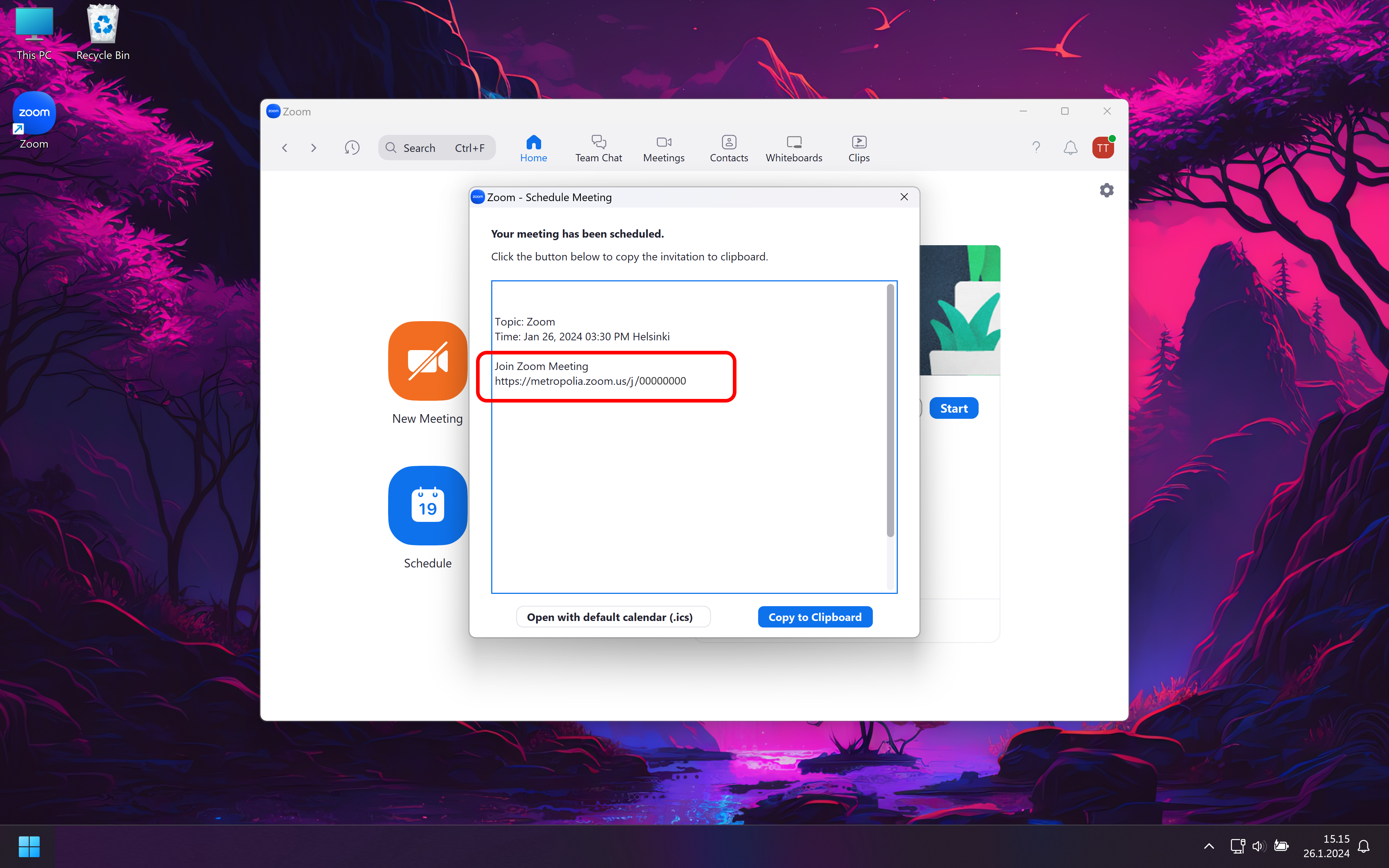
  • A window with text Your meeting has been scheduled opens
  • From the window, copy the link in the form https://metropolia.zoom.us/j/000000000000 to the clipboard.


Replacing reserved space in the calendar reservation with a remote participation link
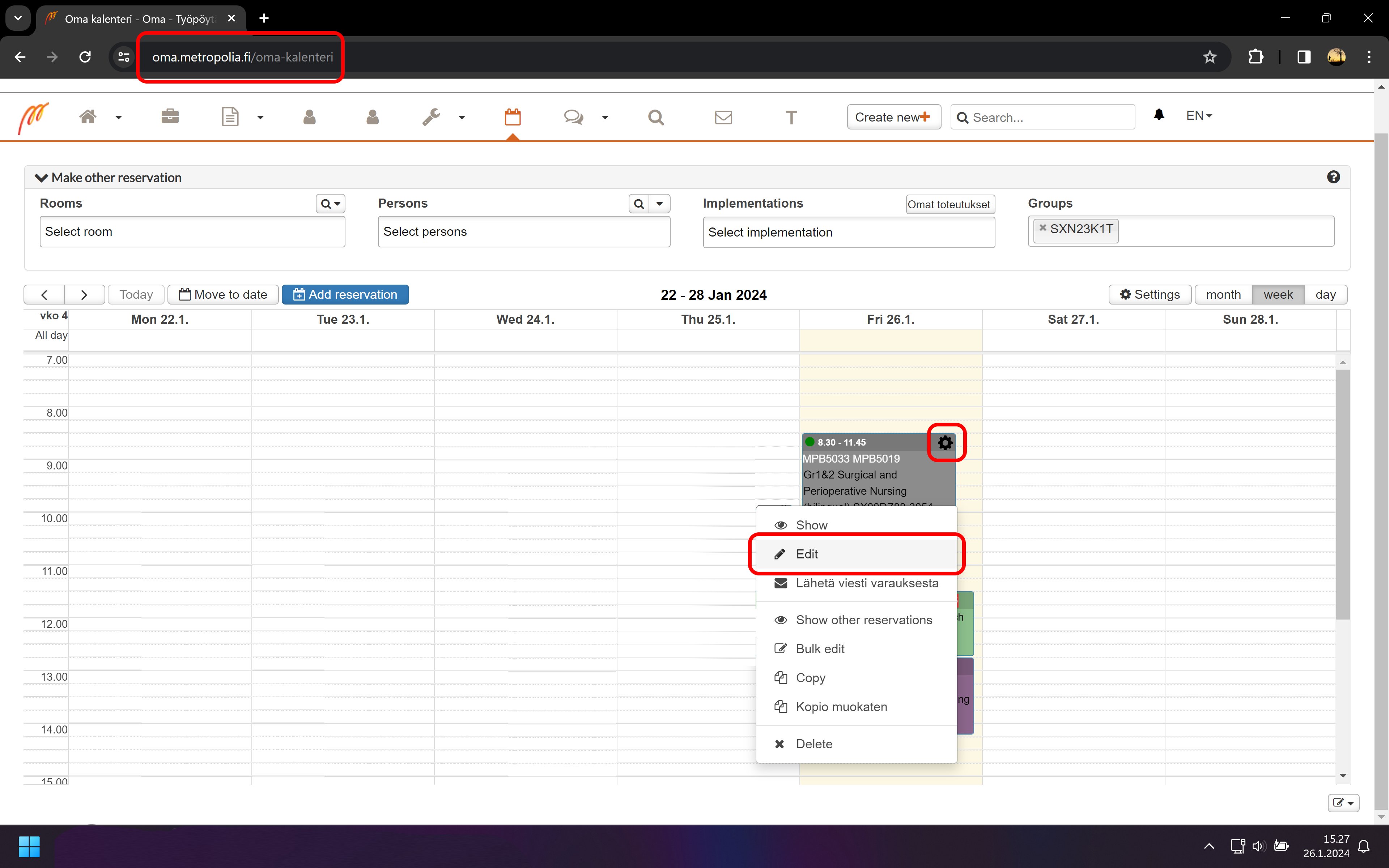
  • Open My Calendar https://oma.metropolia.fi/oma-kalenteri
  • The calendar requires logging in with Metropolia credentials
  • Find a reservation to edit
  • Move the mouse over the reservation
  • Select the gear icon in the corner of the reservation
  • Select Edit from the menu


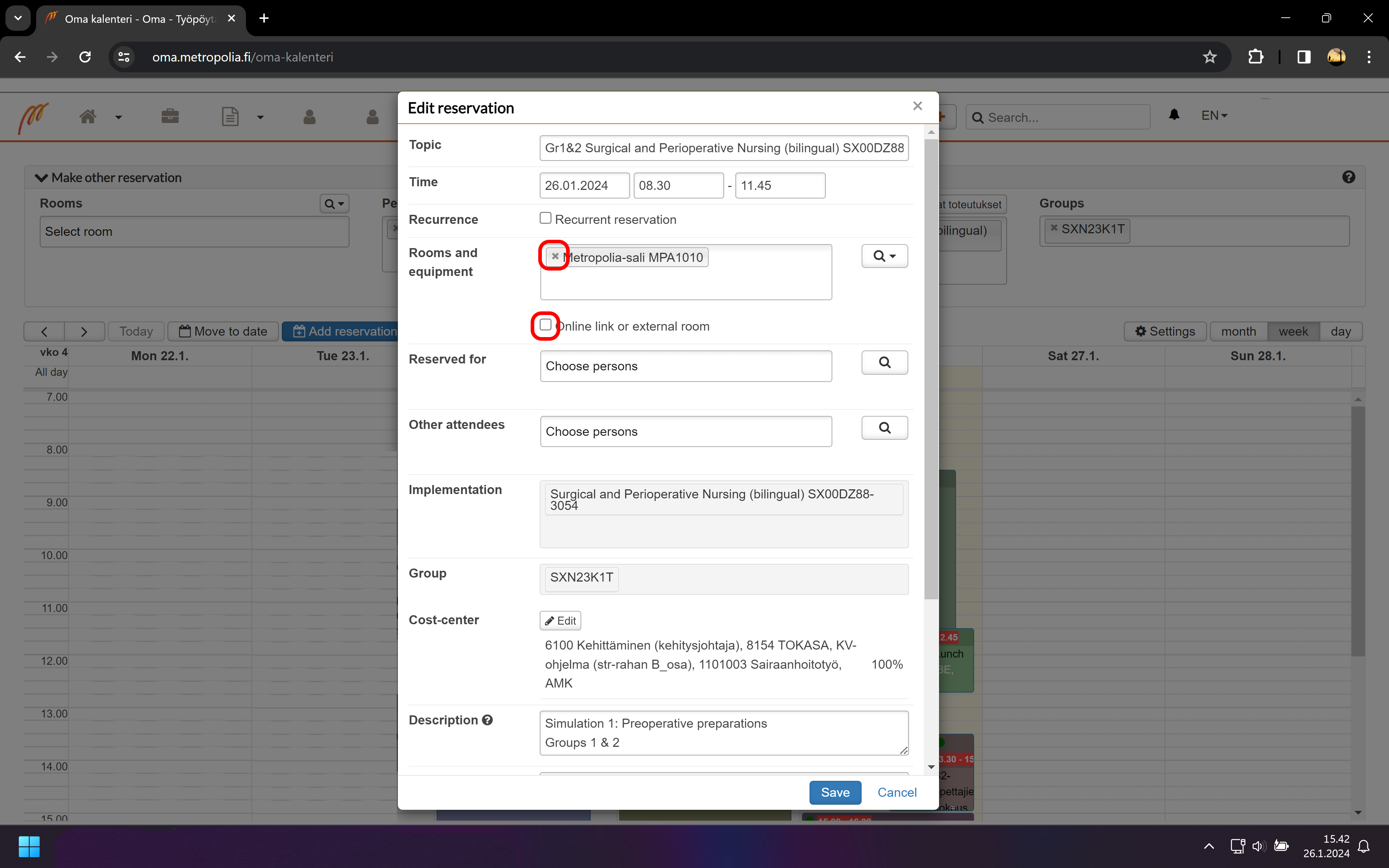
  • Remove rooms and equipment from the rooms and equipment section that you do not want to use during the reservation. The deletion is done by pressing the x sign next to the room or eqipment.
  • In this way, rooms and equipment are freed up for others to reserve and use.
  • Select Online link or external room
​


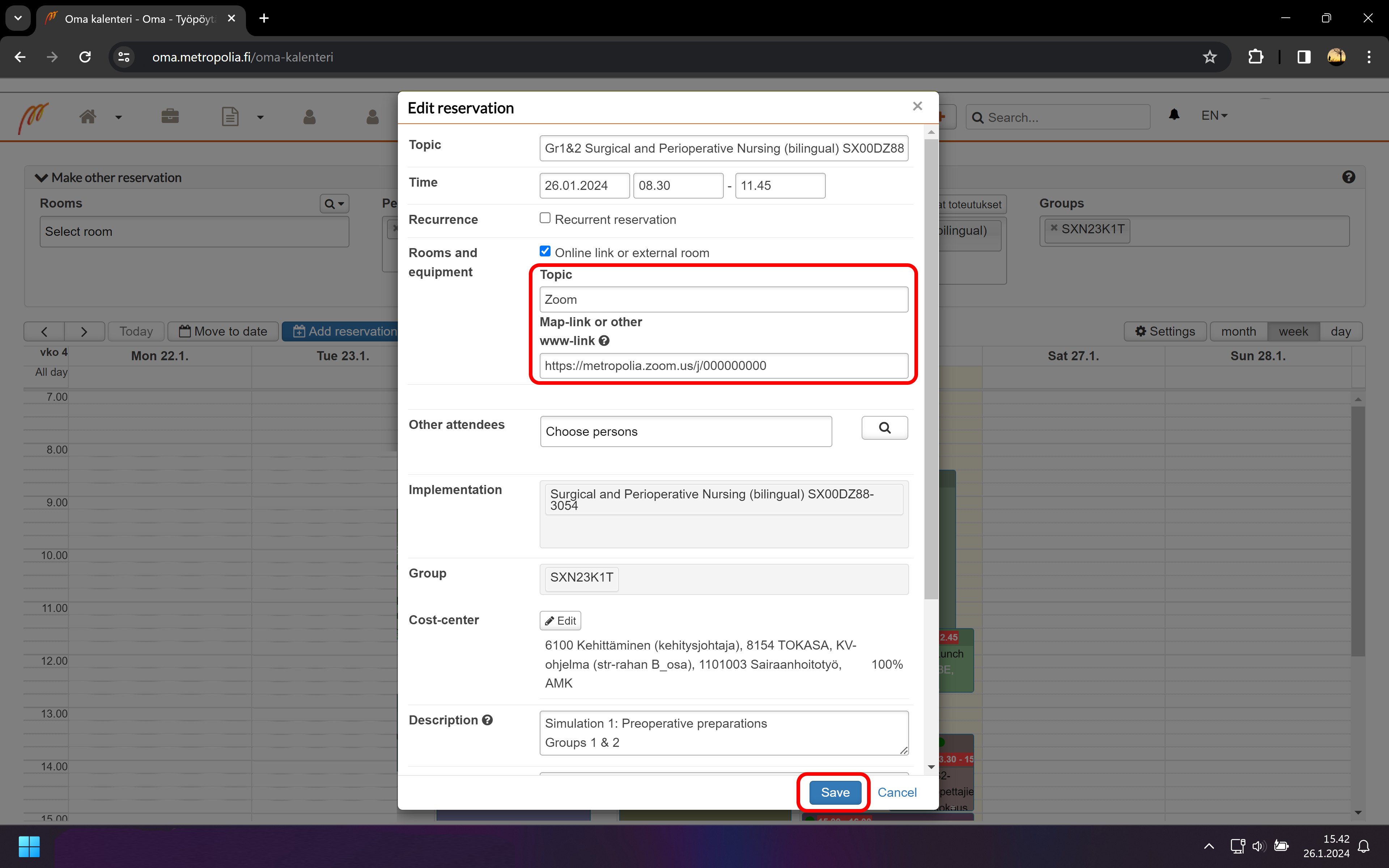
  • Add a topic of the link. e.g. Zoom, Online or Teams
  • Add a web link to the www-link for remote participation from the clipboard.
  • Select Save.


Suomeksi 


  • Created by Tanel Tuuha on 29.1.2024
  • updated2024
  • zoom
  • distant
  • learning
  • face-to-face
  • distantlearning
  • schedule
Overview
Content Tools
Apps
Pages
Blog
Labels
Space Operations
  • Powered by Atlassian Confluence 8.5.26
  • Printed by Atlassian Confluence 8.5.26
  • Report a bug
  • Atlassian News
Atlassian