Lukkarikone User manual
Lukkarikone
Quick Manual
How it works
Lukkarikone is actually a view to the Metropolia (premises) reservation system. It is made as a tool for students to generate study-schedules. The user can use the machine in two ways: by giving the machine his/her group identifications code and generate the schedule with that information or alternatively by searching for different study implementations and generate the schedule with that information. You can also use both of these methosds simultaniously. The machine searches all reservations with the given inputs and generates the schedule.
Main view
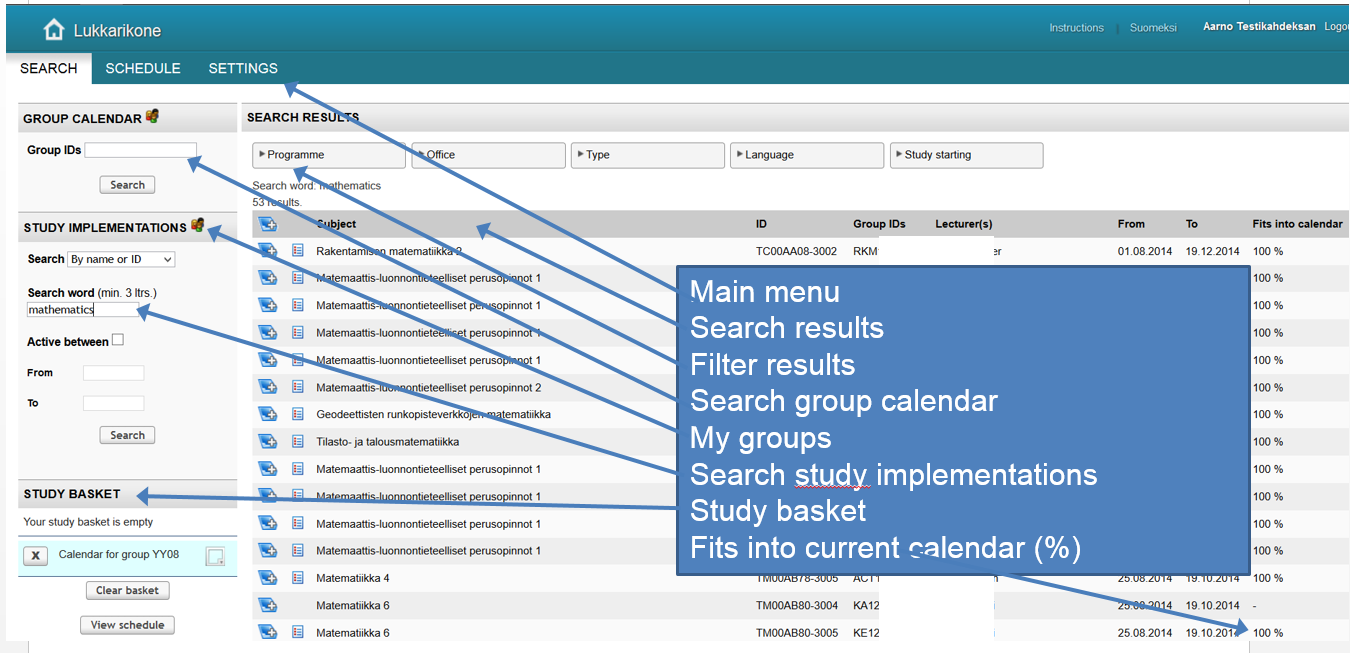
The main view includes
- Main menu
- Search fields
- Study basket (like shopping cart in some web-shops)
Search page (first Tab)
Search page opens by default when you open Lukkarikone (if no default schedule is selected in the Settings page). In this page the user tells the machine all the criteria on how the schedule will be generated. The criteria can be study implementations or just group identification code - or a combination of those. All the criteria are collected into the study basket and used to generate a schedule that can be accessed from the second Tab (Schedule)
Making the Schedule
There are two ways to generate a schedule. The first way is to enter the group identification code in the “group calendar search” and select it to the study basket or (the second way) by going to “search study implementations” and search & select wanted implementations to basket. Then just go to Schedule tab. Underneath is a step-by-step guide for both ways.
Quick Schedule by Group ID:
1. In the ”Search group calendar” -view, enter your group ID - you can also search by entering only the first two letters. Then click “Search”.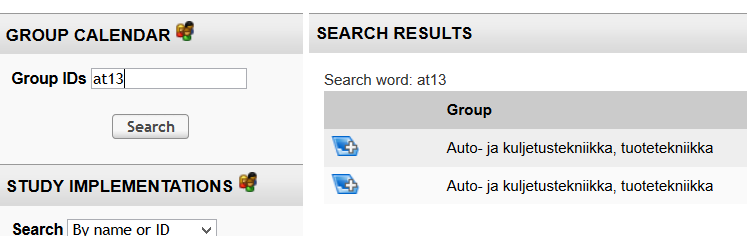
2. The search result lists all groups that match the given criteria AND have at least one reservation in the Metropolia reservation system.
3. Select the right group by clicking the icon next to it - the colour of the icon changes when it is selected
4. The selected group should appear now in the study basket.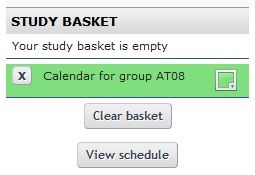
5. Now you can look at the group’s schedule in the Schedule-tab. It shows all the reservations that are connected to the selected group.
Creating Schedule with study-implementations:
This search differs from the previous one so that in this search the user searches study-implementations (instead of groups) and selects them into the study-basket. The schedule is generated by searching all matching reservations for the selected study-implementations.
The user has to define which study-implementations are used to generate a schedule.
1. Click ”search implementations” on the left - now a different looking search-box appears. You can search implementations by it’s name (or part of the name), code, teacher’s name or by your group ID. In addition you can specify more exactly the date when the implementation is planned to start. Then click “Search”.
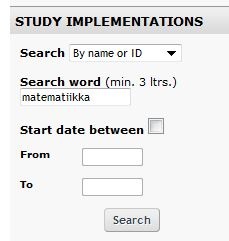
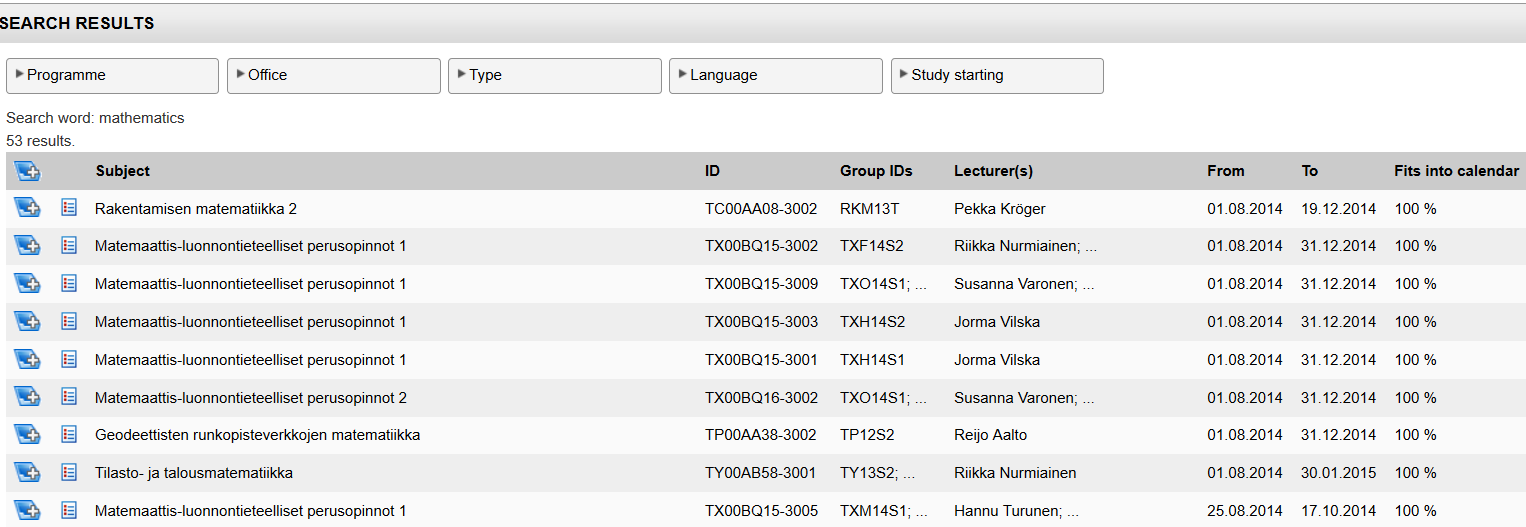
2. In the example above, we have used ”search by name” and entered ”mathematics” as search word. The result list shows only 100 results on one page.
Filtering: You can use the facets on top of search results in order to filter results
Select implementations to the study-basket by clicking the '+' icon next to the implementation name. The other icon means that this implementation has at least one reservation in the reservation system. If this list icon is not visible then the implementation has no reservations and thus no calendar markings for the schedule. Select as many implementation as you like to the study-basket. You can select all visible results at once by clicking the uppermost one. You can remove implementations from the study-basket by clicking “X” next to the corresponding implementation in the basket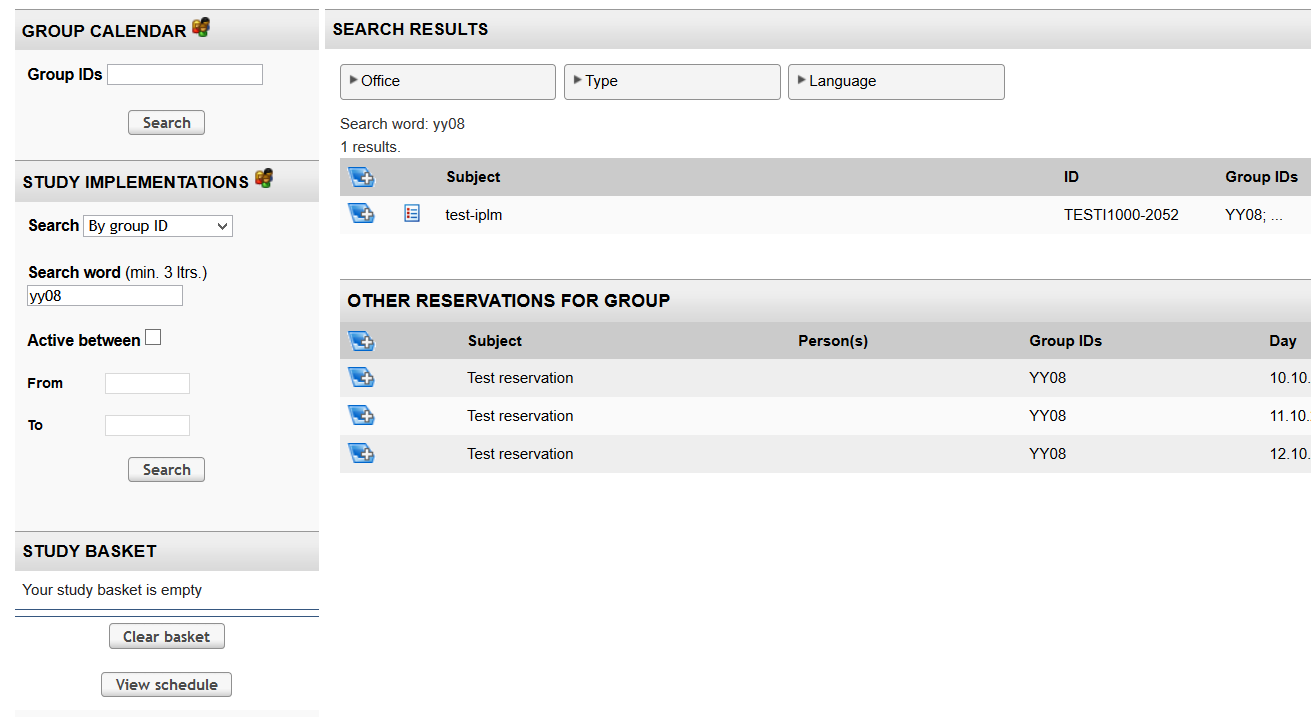
In the example above we have searched implementations by group ID “YY08”. As a result 1 implementation is found and all of those are visible. In addition it automatically looks for other reservations for this group that are not connected to any study-implementation but are connected to this group ID (such as exam, seminar etc.). You can also select there reservations to the study basket.
Note. If you use a partial/incomplete search word like ”at0” the machine lists every instance that starts with at0, for example AT06 and AT07, AT08 etc. You should use as exact a search word as possible like “AT06”. If only one result is found in Group search, the system will automatically select it and goes to Schedule view.
Tip:You can click on any implementation to get more information of that study.
3. After you have selected all necessary implementations to the study-basket you can move to Schedule tab and see the schedule for selected studies.
Schedule page
There are two Schedule views available - a normal calendar view and a list view. You can choose which view to use.
Schedule view
Schedule view shows the weekly-schedule of the groups/implementations that you have selected as criteria. You can click on any marking (reservation) to show more details of that single reservation. In this view you can also hide single reservations or make them visible again. You can also print the weekly schedule (or browse weeks).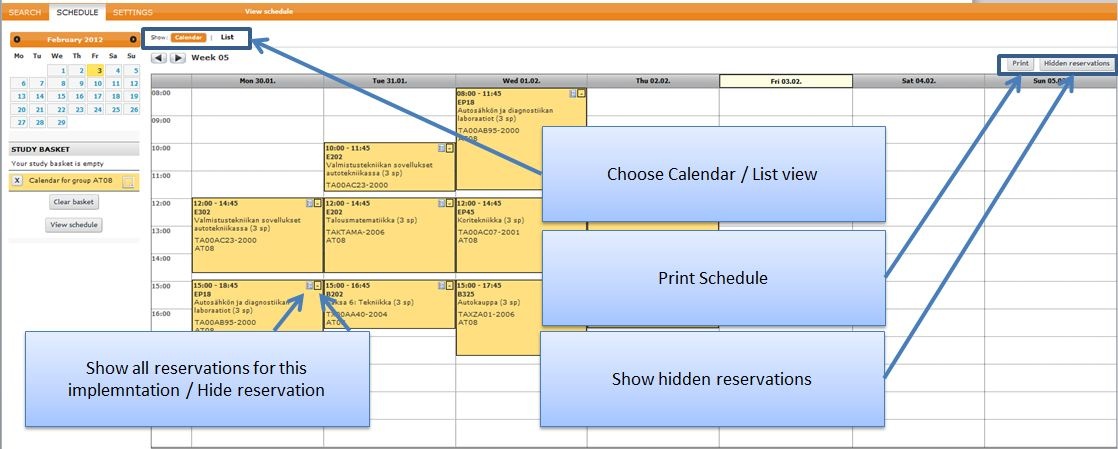
If you click one of the reservations a new pop-up opens showing you more info and enables you to hide a reservation.
List view
In the list view you can see all the future reservations related to the study basket. You can sort reservations based on the search word and hide reservations. Furthermore you can save the list in i.e. Excel format or copy the list to clipboard (excel- and copy features depricated since 2023).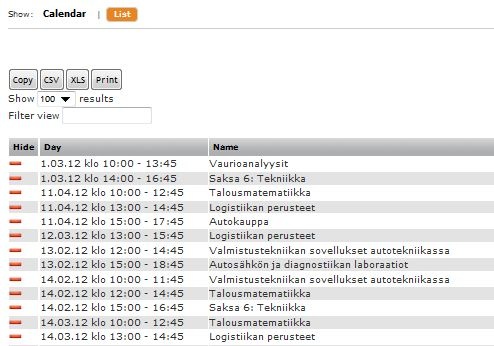
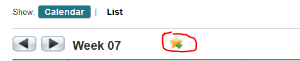
Schedule (study-basket) direct link can be copied behind the star-icon (i.e. direct link to group schedule).
Settings
To access Settings menu you have to first log in with your own Metropolia username/password.
Saving a Schedule
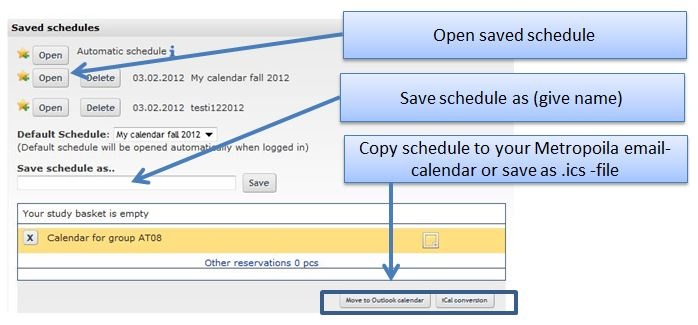
To save the Schedule first sign in, then compose the Schedule you wish (on the search page). Then go to Settings page and give the schedule a name and then click "Save". You can also set the default Schedule which will open automatically when you sign in the next time.
Automatic Schedule
Automatic schedule (if selected) will be generated based on the information in Room reservation system. This will include reservations such that the user
- has made the reservation - non teaching related (no implementation or group ID attached to reservation)
- has made the reservation - teaching related (implementations or goups attached to reservation)
- has been attached to a reservation study implementation
- has been attached to a reservation studentgroup (reservations that have been attached to groups that the user belongs to)
- has been attached to a reservation separately (user is attached separately to reservations like meetings)
Other settings
In the Settings you can also
- change calendar view settings (what info will be shown in the weekly schedule view).
- include other reservations into the study basket (based on Room reservation system, select from same options as in automatic schedule)
- copy a direct URL link to a saved schedule (star-icon beside the saved schedule)
- export reservations in the study-basket to your Metropolia email calendar or save in iCal-format. Remember that the export is based on information at the time of export, future changes in the schedule will not be updated in the exported calendars (except in Exchange-export if a lesson is deleted from the room reservation system, it will also be removed from your calendar). The latest up to date information is always in Lukkarikone! After Exchange-export the markings will appear in your Calendar after a few minutes.