How to Delete Browser Cache and History
Deleting browser cache and history sometimes helps when a page cannot be accessed. For information security reasons, it is also advisable to delete browser cache and history after online banking or online shopping on a public workstation.
http://www.refreshyourcache.com/en/home/ has intrusctions for other browsers too.
Firefox
The easiest way of emptying browser cache, no matter which Firefox version you are using, is by pressing the shortcut Ctrl+Shift+Del (on mac use Cmd+Shift+Delete) which opens the window below: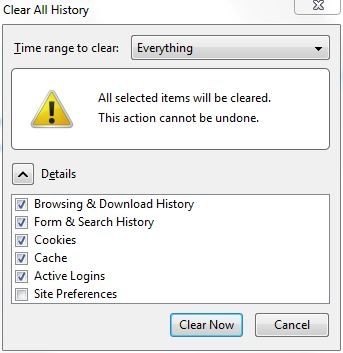
Select in the Time range to clear menu the period that you want to delete from the history, cache etc. The default Everything is the recommended option.
In Details, you can select separately what to delete in case you do not want to delete everyting.
By clicking on Clear Now all selected items are deleted.
Internet Explorer
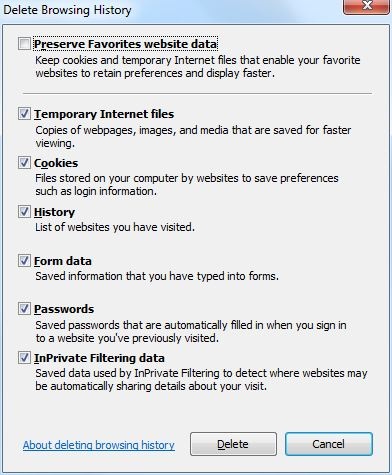
The same shortcut Ctrl+Shift+Del works also in deleting Internet Explorer history.
Google Chrome
Also Chrome obeys the Ctrl+Shift+Del command (on Mac cmd+Y or from the History-menu Show All History). Define the history period that you want to delete in Obliterate the following items from. It is advisable to delete history from the beginning of time, at least on a public computer.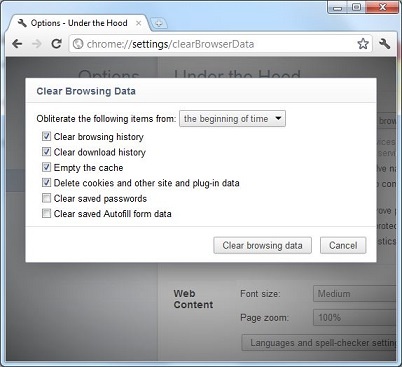
Safari 5
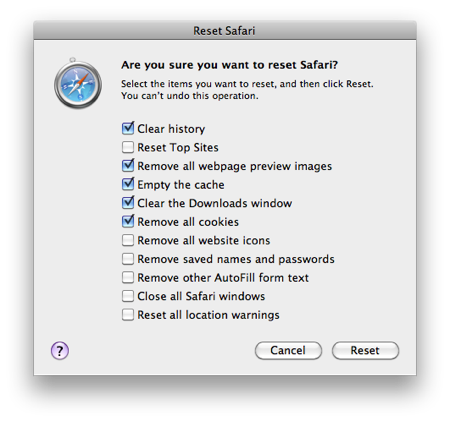
In a Mac Safari browser, history is cleared by selecting Reset Safari in the Safari menu: